Digital wardrobe in Google Photos: Wardrobe or albums
Two ways to keep a digital wardrobe in Google Photos: the automatic Wardrobe feature and plain albums with a spreadsheet. Who can use each, per Google's help pages.
Google Photos can hold a digital wardrobe in two ways. Its Wardrobe feature builds one automatically from photos of you, but Google’s help page limits it to mobile devices in the US, India and Brazil, and it needs Face Groups switched on. Anywhere else, or if you’d rather not have your library scanned, ordinary albums and a spreadsheet do the same job by hand.
This post covers both routes. Everything about Google Photos comes from Google’s own help pages and announcement, which are linked throughout and listed at the end.
How we checked
On 21 November 2026 we read Google’s help pages for Wardrobe, Face Groups, albums, search, backup and storage, plus the help page for images in Google Sheets and Google’s announcement of Wardrobe.
We haven’t used Wardrobe ourselves, so this is a reading of what Google says, not a review of how well it works. The album method further down is our own suggestion, built only from features those pages describe.
You should also know that we’re building Amalook, an AI wardrobe app that isn’t released yet. We have an interest in this subject, which is one reason we’ve kept to what Google has published.
What is the Wardrobe feature in Google Photos?
Google announced it on 29 April 2026. The announcement says the feature uses AI to create a “wardrobe” collection from clothes that appear in your photo library.
The help page lists what you can do once it’s built:
- See your items one by one, sorted by recently worn or filtered by type, such as tops, bottoms or footwear.
- Create outfits of up to 6 items, name them and share them.
- Try an outfit on digitally. The result is a video you can save, share or regenerate.
- Delete items you don’t want in the collection.
You start it in the app under Collections, then Wardrobe, then “Build my wardrobe”. Google says you get a notification when it’s ready, and doesn’t say how long that takes.
Who can use Wardrobe?
Fewer people than the announcement suggests. These are the conditions on the help page as we read it on 21 November 2026.
| Condition | What Google’s help page says |
|---|---|
| Country | You must be located in Brazil, India or the US |
| Device | A mobile device. It is not available on the web |
| Android | Android 10 or later |
| iPhone and iPad | The page says the device must be updated to version 7.84 or later |
| Face Groups | Must be turned on, and you must have selected which face is yours |
| Account | An eligible Google Account that meets the minimum age for your country or region |
| Rollout | To Google AI Pro and Ultra subscribers and “other select users” over the next months. Eligible users get an in-app notification |
Two things follow from the table. If you live in the UK or anywhere in Europe, the help page doesn’t include you yet. And meeting every condition doesn’t guarantee you have the feature, because the page still describes a staged rollout. If Wardrobe doesn’t appear under Collections, the album method below works everywhere Google Photos does.
What does Wardrobe scan, and can you turn it off?
Google is specific about the scan. When you allow Google Photos to generate your wardrobe, “your photo library from the last 4 years will be scanned” to identify items.
It finds your clothes through your face. Wardrobe builds the closet from photos in the face group labelled “Me”, which is why Face Groups is a requirement. The help page warns that if unfamiliar items appear, that group may include other people. If you correct the group, the wardrobe resets and rebuilds.
Face Groups is worth understanding before you switch it on for this. Google’s Face Groups page says the feature creates face models and that these “may be considered biometric data in some jurisdictions”. It also says that turning Face Groups off deletes your face groups, the face models and your labels.
To opt out of Wardrobe itself, the help page gives this path: profile picture, Photos settings, Preferences, “Organize your outfits”, then the toggle. The page doesn’t say what happens to a wardrobe that has already been built when you switch it off.
One limit follows from how it works. Wardrobe is built from photos of you, so a piece you’ve never been photographed in has no route into it that the help page describes. We didn’t find a way to add an item by hand on that page.
How do you build a wardrobe with albums instead?
This is our method, not Google’s. It uses only what the albums help page documents.
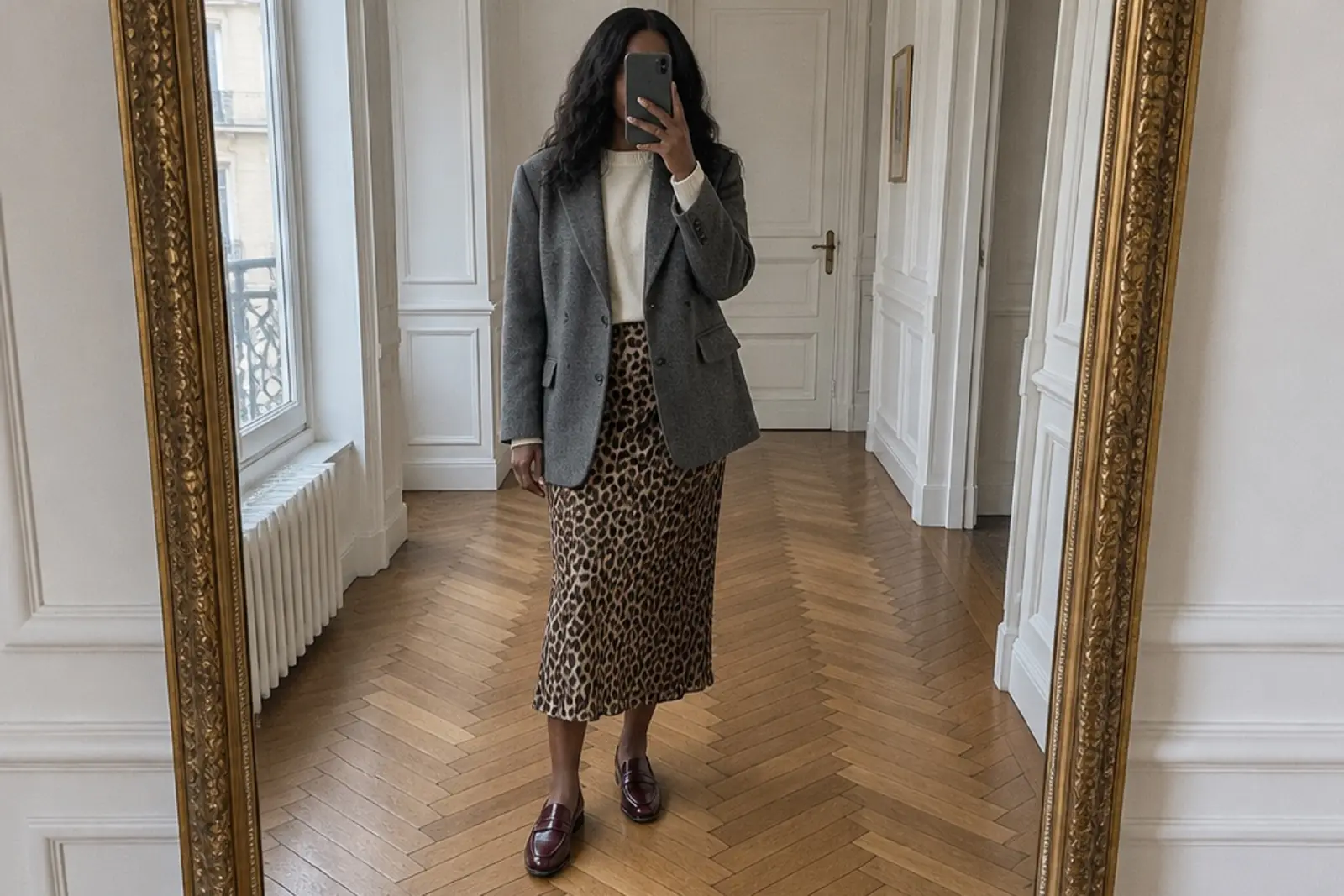
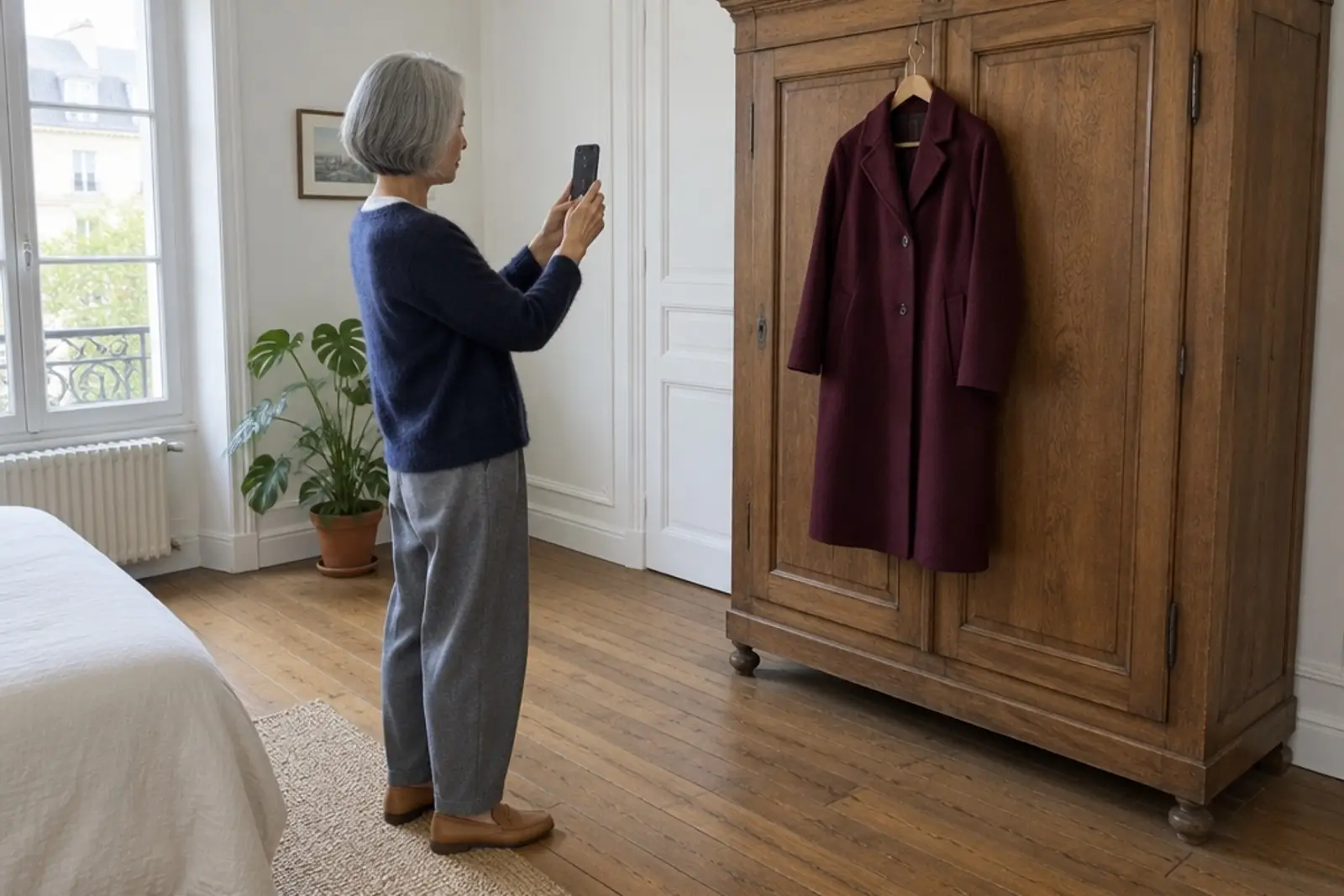
- Photograph each piece once. Hang it on a door or lay it flat in daylight, and use the same spot each time so the photos look alike. For outfits you already like, a mirror photo is enough, and our mirror selfie tips cover light and angle.
- Make one album per category. Tops, bottoms, dresses, outerwear, shoes, bags and accessories is a reasonable start. Select the photos, choose Add, then Album, then New album. An album holds up to 20,000 photos or videos, so size won’t be the problem.
- Add an “Outfits” album. Put photos of whole looks there. If you plan around the calendar, split it by season or by occasion.
- Put the best order on top. On a computer you can drag items around in Edit album, or sort by newest, oldest or recently added.
- Use text boxes for notes. In Edit album you can add text between photos, for example a line under a coat that says which trousers it goes with.
- Retire pieces without losing them. Removing a photo from an album leaves it in your library, so you can move a donated coat to an “Archive” album and keep the record.
Sharing works too, with a limit. If you share an album with a friend or a stylist, Google says a collaborator who didn’t create it can only add photos and videos. Only the creator can change the rest.
Search is the weak point of plain albums. Google Photos has no field for “wool” or “bought in 2024”. Its search page says a search in quotation marks finds exact matches in filenames, captions and text within photos. That suggests a possible trick: include a handwritten card or the care label in the frame. We haven’t tested how reliably that works for clothes, so try it on a few photos before relying on it.
What should go in the spreadsheet?
Albums show you what you own. They can’t count anything, and that’s what the spreadsheet is for. One row per item is enough.
| Column | Why it’s there |
|---|---|
| Item | A name you’d recognise, such as “grey wool blazer” |
| Category | The same names as your albums |
| Colour | For checking what goes with what |
| Bought | Month and year |
| Price | What you actually paid |
| Wears | A tally you update, weekly is fine |
| Cost per wear | Price divided by wears |
| Photo | Optional, see below |
Google Sheets can hold a photo inside a cell. Its help page says to click the cell, choose Insert, then Image, and place the image in the cell. Images must be under 50 MB in .png, .jpg or .gif format, and a cell with an image can’t also contain text, so the photo needs its own column.
As a worked example, a coat that cost 180 and has been worn 45 times comes to 4 per wear. The numbers are made up to show the sum. Our cost per wear calculator does the same thing if you’d rather not write the formula.
The tally is the hardest part to keep up. If weekly updates don’t last, count wears for one month and use that as a sample.
What do you give up each way?
| Wardrobe feature | Albums and a spreadsheet | |
|---|---|---|
| Set-up | Automatic, from photos you already have | By hand, one photo per piece |
| Where it works | Brazil, India and the US, on a mobile device | Anywhere Google Photos works, including on a computer |
| Needs Face Groups | Yes | No |
| Clothes you’ve never been photographed in | No way to add them that the help page describes | Photograph them and they’re in |
| Outfits | Up to 6 items, with digital try-on | Photos of looks you’ve actually worn |
| Price, purchase date, cost per wear | Not mentioned on the help page | Yes, in the spreadsheet |
| Wear tracking | Sorts by recently worn. No counts are mentioned | A manual tally |
| Who decides what’s in it | The scan, then you delete what’s wrong | You, from the start |
Both routes share two costs. Backed-up photos count towards your Google Account storage, which Google’s backup quality page puts at up to 15 GB, and the backup page says that storage is shared with Drive and Gmail. Outfits and try-on results from Wardrobe count as well. Google also says that if you’re inactive in Google Photos for 2 years or more, your content may be deleted.
Neither route is free of AI in the strict sense. Wardrobe is an AI feature by Google’s own description. Albums are manual, but Google Photos search understands phrases such as “colorful sunsets in Mexico”, so the library is analysed either way. If that matters to you, our piece on wardrobe apps without AI covers the alternatives, including paper.

Which should you choose?
Wardrobe, if you’re in one of the three countries, already use Face Groups and mostly want to see what you own and try combinations. It asks the least of you.
Albums and a spreadsheet, if you’re outside those countries, don’t want Face Groups on, or care about numbers such as cost per wear. It takes more work up front and a little upkeep each week.
Both, if you can. Nothing on the help pages stops you keeping a spreadsheet next to an automatic wardrobe, and the spreadsheet holds the facts a photo can’t.
Whichever you pick, start small. Thirty pieces you wear often will tell you more than three hundred you photographed once and never looked at again.
Where a wardrobe app fits
A wardrobe app is meant to join the two halves: the photos and the facts about each piece. That’s what we’re building Amalook to do, with outfits planned on a calendar. It isn’t released yet, and it relies on AI, so it won’t suit everyone. We’ve written about how we handle your photos for anyone weighing that up. Until then, the albums and the spreadsheet above are a complete system on their own.
Common questions
Is Google Photos Wardrobe available in the UK or Europe?
Not according to Google's help page, which we read on 21 November 2026. It says you must be located in Brazil, India or the US. Elsewhere, you can still keep a wardrobe in ordinary Google Photos albums.
Does Google Photos Wardrobe work on a computer?
No. Google's help page says you need a mobile device and that the feature is not available on the web. Albums, by contrast, can be created and edited at photos.google.com.
How far back does Wardrobe look through your photos?
Four years. Google's help page says that when you allow Google Photos to generate your wardrobe, your photo library from the last 4 years is scanned to identify items.
Can you turn Wardrobe off?
Yes. The help page gives the path: profile picture, Photos settings, Preferences, Organize your outfits, then the toggle. You can also delete single items from the Items view.
Do wardrobe photos use up Google storage?
Yes. Backed-up photos count towards your Google Account storage, which is up to 15 GB shared with Drive and Gmail. Google also says outfits you create in Wardrobe and try-on results count towards storage.
Sources
Checked on 21 November 2026. Listings change, so check them again before you decide.
- Google Photos Help: create your digital closet with Google Photos wardrobe
- Google, The Keyword: a new way to create a digital wardrobe from your Google Photos (29 April 2026)
- Google Photos Help: set up and manage your face groups
- Google Photos Help: create and edit photo albums
- Google Photos Help: search by people, things and places in your photos
- Google Photos Help: choose the backup quality of your photos and videos
- Google Photos Help: back up photos and videos
- Google Docs Editors Help: add an image to a spreadsheet